How to Create a QR Code for Google Reviews (Free, No Expiry)
Step-by-step guide to creating a free QR code for Google reviews. Learn why QR codes outperform traditional methods and how to track results with analytics.
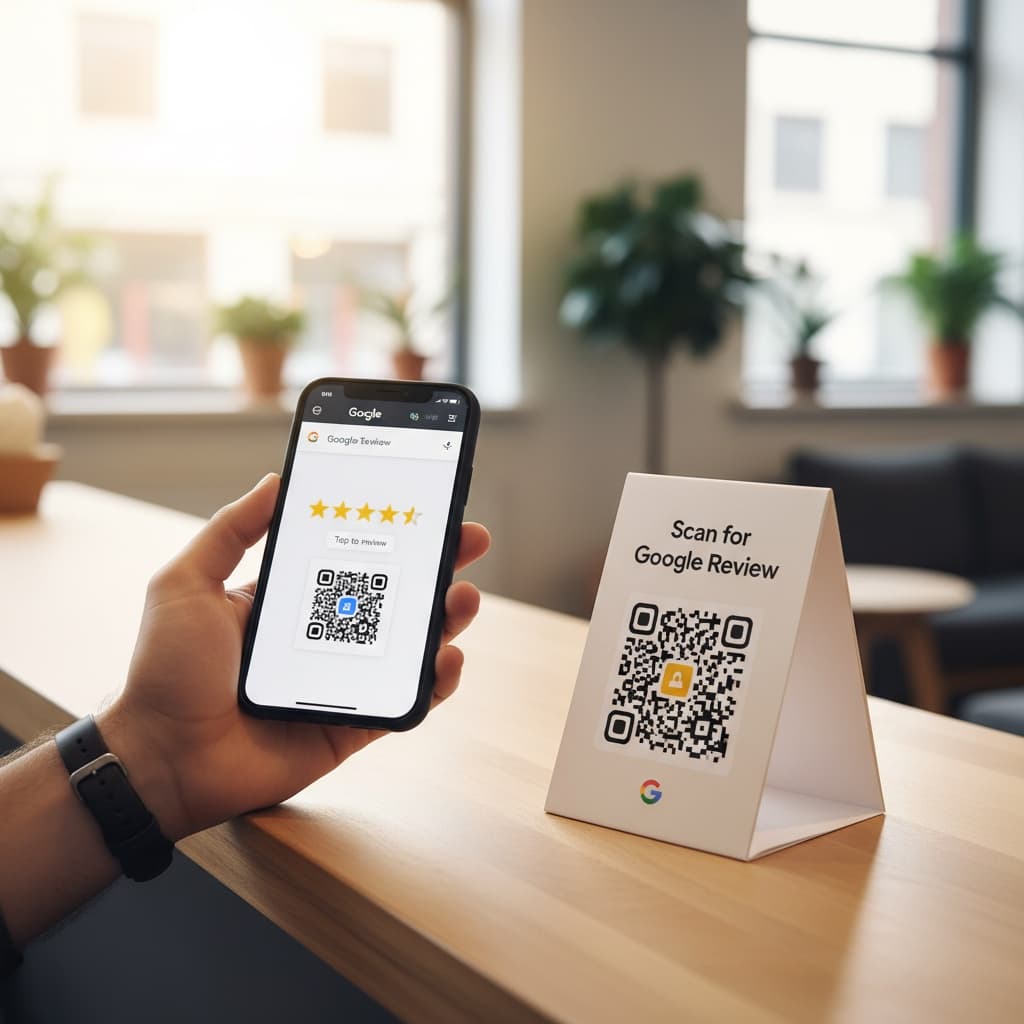
How to Create a QR Code for Google Reviews (Free, No Expiry)
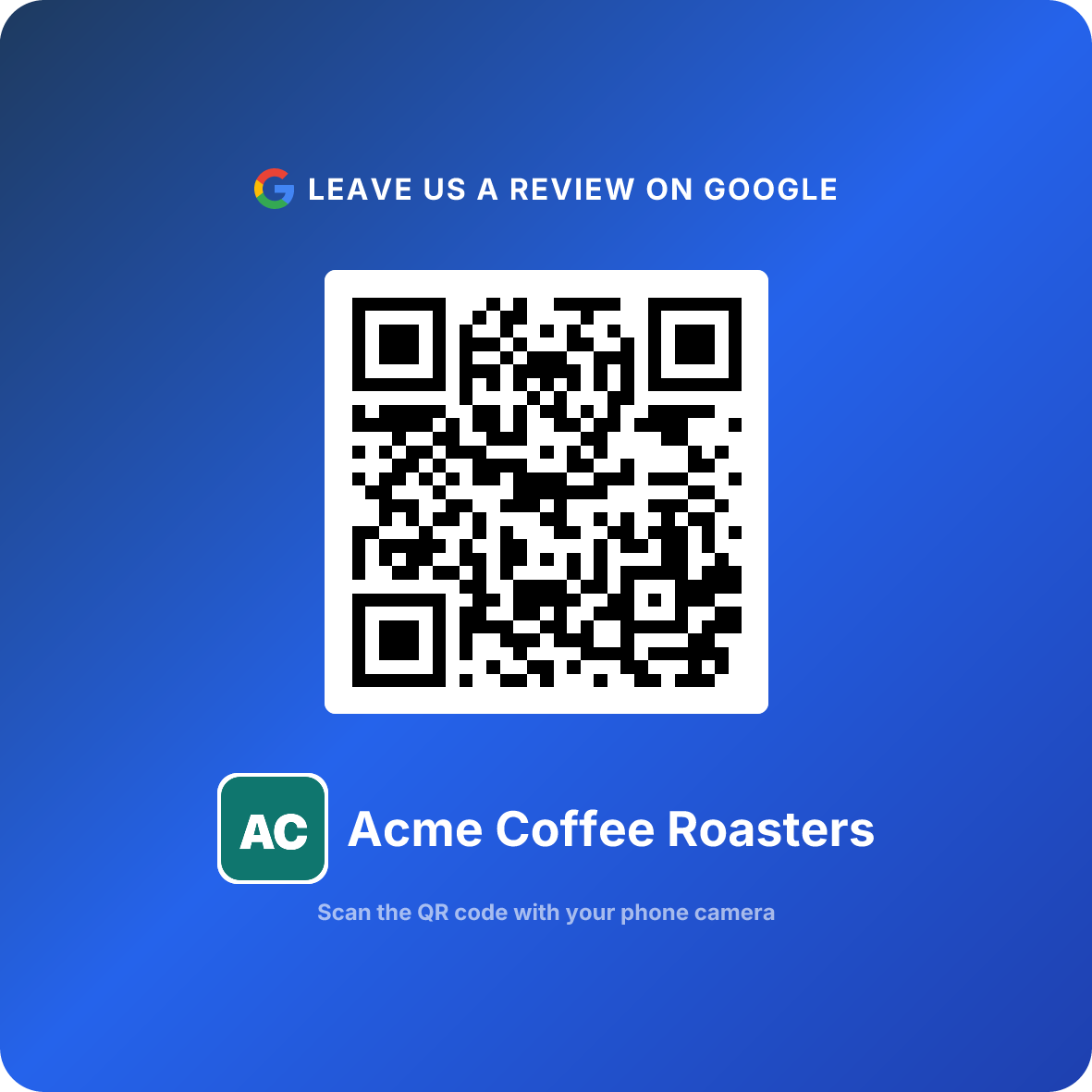
You're running a business. You know reviews matter. You've heard about QR codes for collecting reviews but you're not sure where to start, what it costs, or how to actually set it up. The good news: it's simpler than you think, you can start on a free trial, and it works.
A QR code for Google reviews is one of the highest-ROI tactics you can deploy right now. It removes friction from the review process, costs less than a coffee a week, and starts working immediately.
This guide walks you through everything: how to create your code, why it works better than asking for reviews the old way, best practices for placement, and how to measure results.
What Is a Review QR Code?
A QR code is a square barcode that contains encoded information. When someone scans it with their phone camera, it takes them to a specific URL. In the case of a review QR code, that URL is your Google Business Profile review page.
The benefit is immediate: one scan removes all friction from leaving a review. Customers don't need to search for your business name, navigate through Google Maps, or remember to do it later. They're on your review page in seconds.
This is why review QR codes have become standard for:
- Restaurants and cafes
- Retail shops and salons
- Service businesses (plumbers, electricians, contractors)
- Healthcare practices
- Hotels and short-term rentals
- Any business where customer reviews drive more business
The code is permanent and never expires. Once you create it, it keeps working.
Why QR Codes Outperform Verbal Asks
Let's talk about the traditional approach: a staff member asks a customer to leave a Google review. "If you enjoyed your experience, please leave us a review on Google."
Here's what happens:
- The customer means it. They nod and agree.
- They leave your business.
- Within 5 minutes, they've forgotten about it.
- They never leave a review.
The conversion rate on verbal asks is typically 10-15% at best. That's optimistic.
Now, you place a QR code on the counter, at the register, or on a table tent. No verbal ask required.
Conversion rates jump to 8-12% consistently, without any staff interaction. Better yet, this conversion happens passively -- customers see the code, scan it if they want to leave a review, and move on if they don't. No awkwardness. No pressure.
The reasons QR codes win:
Instant access. No typing, searching, or navigating. One scan and the customer is on your review page, ready to write.
No staff burden. Your team isn't asking customers, pitching reviews, or managing objections. The QR code does the work.
Perfect timing. Customers scan when they think about it -- often right after a positive experience, when they're most likely to leave a good review.
Works for everyone. Whether someone is tech-savvy or not, every modern smartphone camera can scan a QR code natively without downloading an app.
Step-by-Step: How to Create Your QR Code
Creating a QR code for Google reviews takes 2-3 minutes. Here's exactly how.
Creating Your Review QR Code
- 1
Find your Google Business Profile review URL
Go to your Google Business Profile in Google Maps or search results. Click on 'Reviews' and look for the URL. It should look like: google.com/maps/place/[Your+Business+Name]/reviews
- 2
Visit the QR code generator
Go to ReviewQR's QR code generator and start the 14-day free trial (card on file, cancel anytime).
- 3
Paste your Google review URL
Copy your Google Business Profile review URL and paste it into the generator's URL field.
- 4
Generate your code
Click 'Generate QR Code.' Your unique, permanent code appears instantly.
- 5
Download the image
Download the QR code as a high-resolution PNG or PDF. This is the file you'll print.
- 6
Test the code
Scan it with your phone camera to confirm it links to your review page. Done.
That's it. Your QR code is created and ready to use. It never expires. You can print it on table tents, posters, business cards, receipts, packaging, or anywhere else.
Pro tip: If you plan to track how many people scan your code, ReviewQR's analytics show total scans on every plan, including during the trial.
Printing and Design Best Practices
Once you have your QR code, you need to print it. Here's how to do it right so it scans reliably.
Size and Resolution
Print your QR code at least 1 inch by 1 inch for it to be scannable from a typical distance. For best results, print it 2-3 inches or larger. This gives customers plenty of visual space and works reliably even in low light.
Always print from high-resolution files (300 DPI or better). Pixelated or low-res QR codes fail to scan.
Color and Contrast
The most reliable QR code is black on white. This is the standard for good reason -- maximum contrast means maximum scannability.
If you want to brand it with colors, keep it simple:
- Dark foreground, light background. (Dark QR code on light background)
- Avoid pastels or light colors. They don't provide enough contrast.
- Never use white on white or black on black. The code becomes invisible.
Design Integration
You can add your logo in the very center of the QR code, but keep it small -- no more than 20% of the total code area. Your logo should not obscure the scanning data. A better approach: place your logo next to the QR code, not on top of it.
Add a simple call-to-action above or below the code:
- "Scan to leave a review"
- "We'd love your feedback - scan here"
- "Enjoyed your experience? Scan to review"
Keep the text minimal and the QR code as the focal point.
Paper and Placement Materials
For check presenter inserts: cardstock (80-110 lb) is ideal. It's durable and won't tear or wrinkle.
For table tents: use thicker cardstock that can stand on its own without bending.
For stickers or labels: use high-quality, waterproof sticker material if they'll be on packaging or exposed to moisture.
For window decals or outdoor placements: use durable vinyl or weather-resistant materials.
Where to Place Your Review QR Code
Location determines conversion rate. Place your QR code where customers naturally pause and have a moment to scan.
Top-Converting Placements
Check Presenter or Receipt (Restaurants, Salons, Services)
This is the single highest-converting placement. Customers see it right after payment, when they're sitting with nothing to do, and they're in a moment of peak satisfaction. Conversion rates: 8-12%
Insert a card with your QR code into the check presenter alongside the receipt. Keep it small and unobtrusive.
Counter or Point of Sale (Retail, Salons, Service Counters)
Place the QR code at the register where customers can see it while completing their transaction. This works especially well for salons, barbershops, and retail environments where the interaction ends at the counter.
Table Tents or Displays (Restaurants, Cafes, Bars)
A small, branded table tent on every table catches customers during natural pauses in their visit. They see it when waiting for food, between courses, or over coffee. Especially effective in casual dining and bar settings.
Packaging and Bags (Food, Retail, Delivery)
For takeout orders, food delivery, or product shipments, include a card or sticker inside the bag or box. This works as a secondary touchpoint after the transaction is complete.
Window or Door (All Businesses)
A decal or poster on your storefront window reaches customers as they arrive or leave. Include a simple message: "Scan to leave a review."
On Receipts (POS Integration)
Most modern POS systems allow you to add a QR code to printed receipts automatically. This reinforces the ask and works as a reminder after the customer has left.
Email and Digital Materials
Include your QR code in email signatures, email marketing, your website, and social media. When someone sees your QR code online, they're prompted to scan and leave a review.
The best placement is wherever your customers naturally spend 30+ seconds with nothing else to do. This is why check presenters and table tents outperform most other locations.
Tracking and Analytics
You should know how many people are scanning your review QR code. It gives you two valuable insights:
- Is the placement working? If placements aren't getting scans, move the code or try a different approach.
- Are scans converting to reviews? Compare your scan count to your actual review count. If 100 people scan but only 5 leave reviews, something is broken (usually bad experiences, not friction).
ReviewQR includes scan analytics on every plan. You can see:
- Total scans over time
- When people are scanning (by day and time)
- How many people scanned from mobile vs. desktop
This data tells you whether your placement is visible and whether customers are engaging with your code.
Measuring Review Conversion
Check your Google Business Profile insights weekly:
- How many reviews came in after deploying your QR code?
- What's the average rating of new reviews?
- Did your overall rating improve?
Cross-reference this with your scan count to understand your conversion rate.
A healthy benchmark: if you get 100 scans per week, you should expect 8-12 new reviews per week (8-12% conversion). If you're getting 100 scans but only 1-2 reviews, your business experience might need attention.
Common Mistakes to Avoid
Mistake 1: Using an Outdated QR Code
Never link to a URL that changes or expires. Your QR code should always point directly to your current Google Business Profile. If you change your business name or location significantly, regenerate a new code.
Mistake 2: Placing the Code in Inconvenient Locations
A QR code on the back of a door, buried in a menu, or in the corner of a poster won't get scanned. Place it where customers naturally have time and visibility. Eye level, easy to access, obvious.
Mistake 3: Printing Low-Resolution or Small Codes
If customers can't scan your code without moving their phone right in front of it, it's too small. If the code looks pixelated or blurry, it won't scan. Always print from high-quality files at 300 DPI.
Mistake 4: Adding Excessive Design Around the Code
Every decoration you add around the QR code reduces scannability. A simple logo next to the code is fine. Intricate patterns, gradients, or complex designs confuse the scanner. Keep it clean.
Mistake 5: Ignoring Your Google Business Profile
Creating a QR code and pointing it to an incomplete Google Business Profile is a missed opportunity. Make sure your profile has:
- Accurate business hours
- Current phone number
- Clear, high-quality photos
- Complete business description
- Regular updates and posts
A customer scans your code and lands on a profile that looks neglected. That damages credibility.
Mistake 6: Only Relying on Verbal Asks
Don't supplement a QR code with aggressive verbal pitches. The strength of a QR code is that it works passively. Staff should only mention it when a customer gives genuine positive feedback, not as a scripted ask.
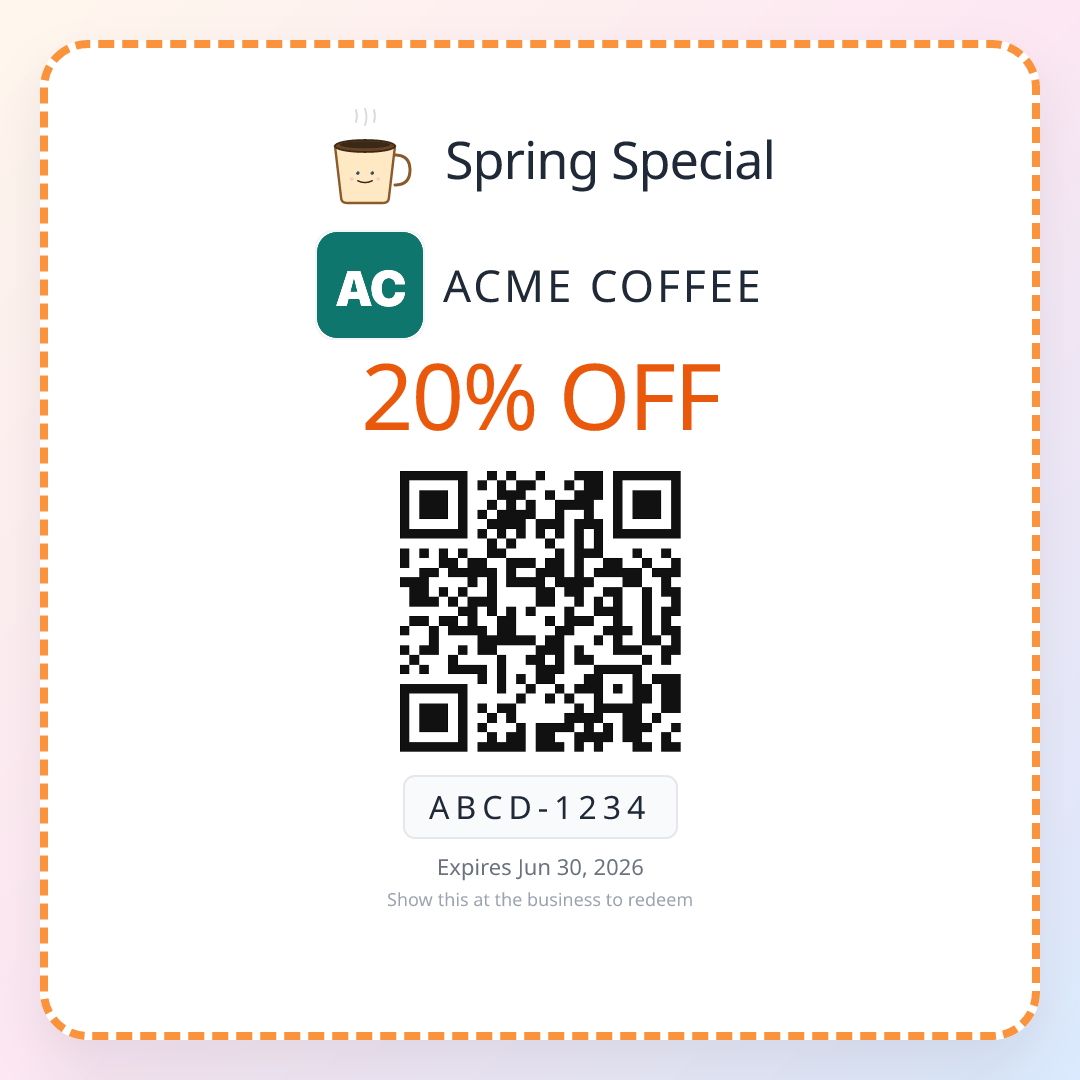
Once your review QR code is bringing new customers in, the same one-scan simplicity can bring them back: keep happy customers returning with QR coupons, the natural next step once reviews start flowing.
Frequently Asked Questions
Is there a cost to create a QR code for Google reviews?
A QR code that points at your Google review link can be made with any generic generator, and the code itself never expires. ReviewQR, which finds the review link for you and adds scan analytics, starts with a 14-day free trial and then runs from $10/month, with no hidden charges.
How do I know my QR code is actually working?
Test it by scanning with your phone camera or any QR code reader app. You should be directed to your Google Business Profile review page. ReviewQR includes scan analytics on every plan, so you can also monitor how many people are scanning your code.
Can I use the same QR code in multiple locations?
Yes, absolutely. One QR code can be printed and placed everywhere -- multiple locations, different marketing materials, print ads, direct mail. Every scan goes to your Google Business Profile, and analytics track the total volume.
What happens if I change my Google Business Profile URL?
Your QR code is linked to your current Google Business Profile. If you ever change your business name or address significantly, you can regenerate a new QR code in seconds. Old codes will stop working if your profile is deleted or merged.
Can I track how many people scanned my review QR code?
Yes. ReviewQR includes scan analytics on every plan (14-day free trial, then from $10/month) showing the total number of scans. You can also cross-reference this with your Google Business Profile insights to see how many scans converted to actual reviews.
Should I create different QR codes for different locations?
If you have multiple business locations with separate Google Business Profiles, yes -- each location gets its own QR code linked to its respective profile. If it's a single business with one profile, use one code everywhere.
What size should I print the QR code?
Minimum 1 inch by 1 inch is scannable from most distances. For best results, print it 2-3 inches or larger so it's easily visible and scannable. Higher resolution printing ensures clean edges.
Keep reading
How to Leave a Google Review (Phone, Computer, and No Google Account)
Step-by-step instructions for leaving a Google review on an iPhone, an Android phone, or a computer, plus what to do without a Google account, how to edit or delete a review, and why a review sometimes does not show up. Written so a business can send this page to its customers.
guidesSmall Business Loyalty Program: No App, No Points, Just a Coupon
Every loyalty program charges the customer an enrollment tax before it can reward anything, and only your regulars ever pay it. The math on what that costs, and the three-play coupon system that replaces it, with placement geometry and a counter script.
guidesGoogle Review Tap Card vs QR Code: Cost, Setup, and What Customers Actually Do
An NFC tap card converts better than a QR code at the counter and worse everywhere else. The honest numbers on cost per review, phone compatibility, and which one earns the return visit.