Review Us QR Code: Create, Display, and Track
Create a 'Review Us' QR code, design professional signage, choose high-converting placements, and track results with scan analytics. Free guide with real data.
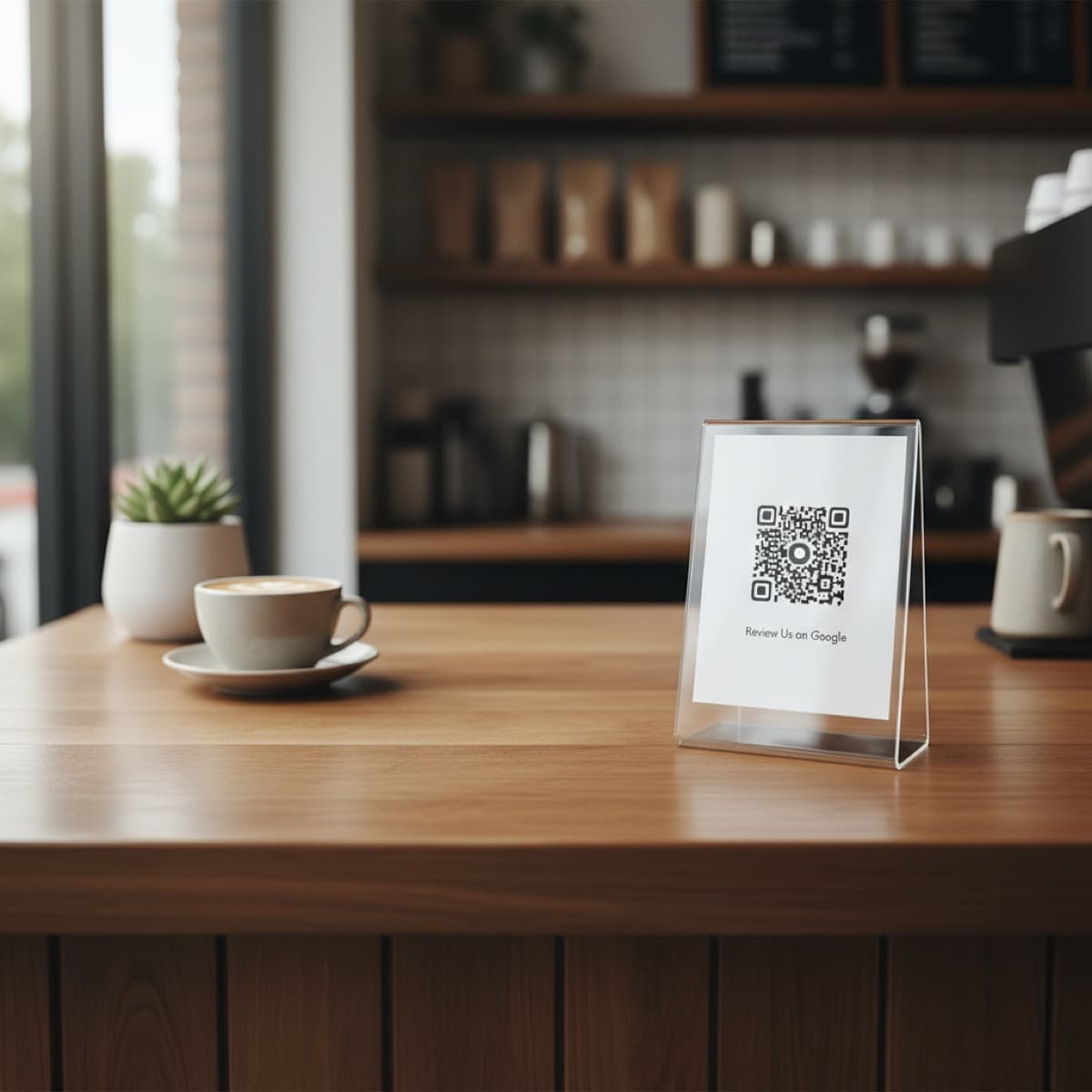
Review Us QR Code: How to Create, Display, and Track Your Google Reviews
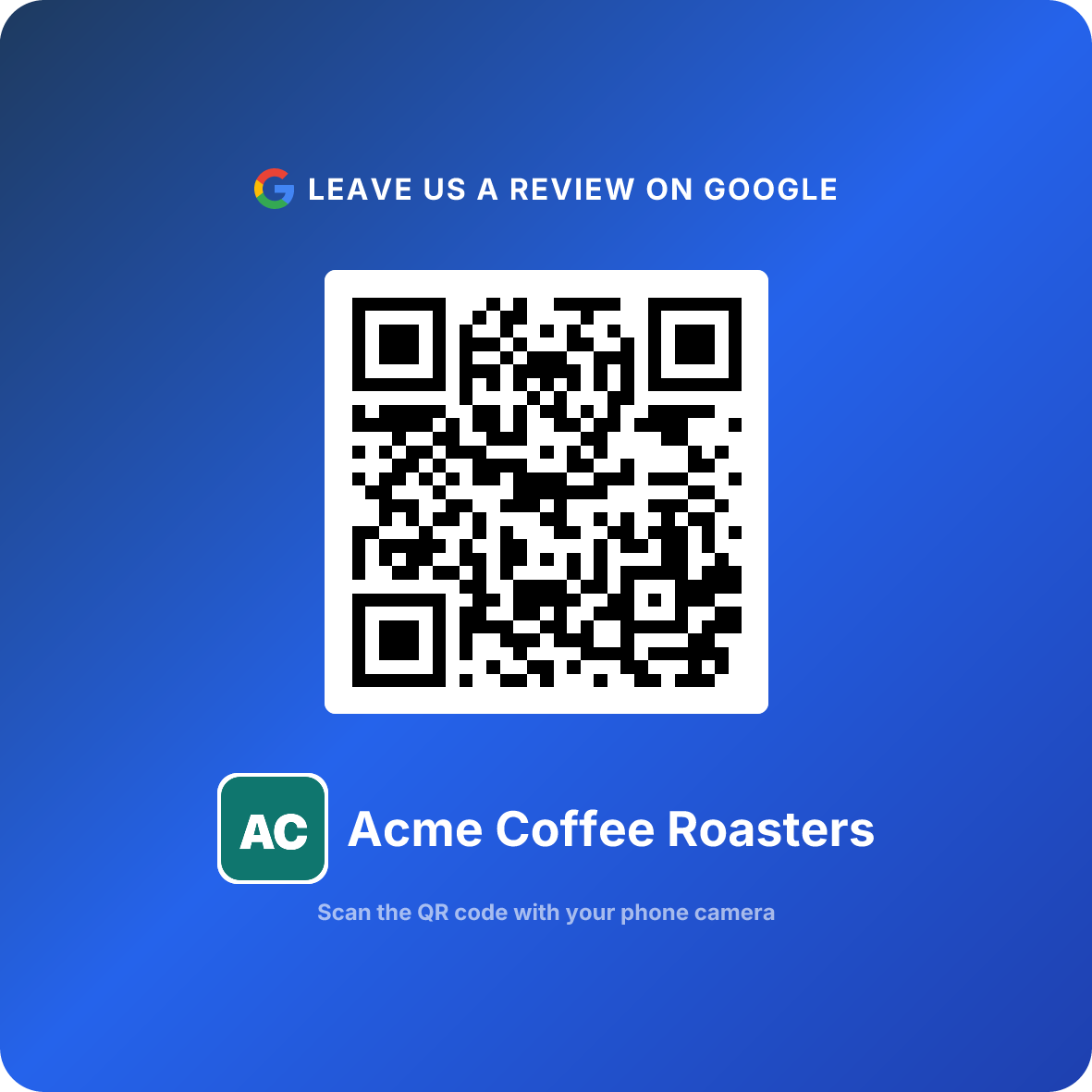
Turn happy customers into reviews
A Google review QR code that gets you more reviews in one scan. Included in every plan.
Get my review QR codeYou printed a "Review Us on Google" card six months ago. It's sitting behind the register, half-hidden by the tip jar, slightly faded from the sun. Your staff forgot it existed. Your customers walk past it every day without a second glance.
Meanwhile, the competitor two blocks over has 340 Google reviews to your 47. Same quality of service, same neighborhood, same prices. The difference? They put a scannable QR code on every table, every receipt, and every checkout counter — and they know exactly how many people scan it each day.
A "Review Us" QR code is the simplest, cheapest, and most measurable way to grow your Google reviews. This guide covers how to create one in minutes, how to design signage that actually gets scanned, where to place it for maximum conversions, and — the part most guides skip — how to track whether it's actually working.
What Makes a QR Code Better Than Asking
Every local business owner has tried the verbal ask: "If you enjoyed your visit, we'd really appreciate a Google review." Some customers smile and nod. Almost none actually do it.
The problem isn't willingness — it's friction. Between the moment a customer thinks "I should leave a review" and the moment they'd actually write one, there are seven steps: unlock phone, open browser, search for the business, find the right listing, tap reviews, tap "Write a review," and then actually type something. That's seven chances to get distracted, interrupted, or simply forget.
A QR code collapses those seven steps into one: scan. The customer's phone camera opens the review page directly. No searching, no navigating, no forgetting.
The other advantage is consistency. A verbal ask depends on your staff remembering, feeling comfortable, and timing it right. A QR code works every time, for every customer, without anyone saying a word. It's there on the table, on the counter, on the receipt — silently converting satisfied customers into written reviews while your team focuses on delivering great service.
Create Your QR Code in 2 Minutes
No software to install, 14-day free trial, cancel anytime.
How to Create Your Review QR Code
Search for your business
Go to the ReviewQR generator and type your business name. We pull your Google Business Profile automatically — no need to find or copy any URLs.
Choose your colors
Pick a foreground and background color that matches your brand. High contrast (dark on light) ensures reliable scanning.
Create your account (14-day free trial)
Sign up in seconds. Your QR code is generated instantly and ready to download as a high-resolution PNG file — ready to print.
That's it. Your QR code works forever — no expiration, no ads, no surprise fees. Print it, display it, and customers scan to leave a Google review in seconds.
Scan tracking is included on every plan, so you can see how many people are actually scanning your code from day one in the analytics dashboard.
Designing a "Review Us" Sign That Gets Scanned
A QR code on its own doesn't get scanned. People need context — they need to know what happens when they scan it and why they should bother. Your signage design is the difference between a 2% scan rate and a 15% scan rate.
The Anatomy of a High-Converting Sign
The best "Review Us" signs share three traits:
1. A clear prompt. Tell the customer what the QR code does. "Scan to review us on Google" beats a naked QR code every time. Keep it under 10 words.
2. Minimal design. The QR code should dominate the sign — at least 40% of the surface area. One line of text above or below. Your logo is optional and should be small. Every visual element that isn't the QR code or the prompt is a distraction.
3. High contrast. Dark QR code on a light background. Never use a colored or textured background behind the QR code itself — it can interfere with scanning. The border around the QR code should have at least 0.5 inches of white space.
Do This
- ✓Use a short prompt: 'Enjoyed your visit? Review us on Google'
- ✓Make the QR code at least 2 inches wide
- ✓Use dark foreground on light background for the QR code
- ✓Include white space around the QR code (quiet zone)
- ✓Match your brand colors on the sign border or header
Avoid This
- ✕Put a paragraph of text — nobody reads it
- ✕Use a tiny QR code that's hard to scan from arm's length
- ✕Place the QR code on a busy or textured background
- ✕Add multiple QR codes to one sign (one action per sign)
- ✕Use the word 'Please' three times — one prompt is enough
Prompt Examples by Business Type
Different businesses benefit from different messaging:
- Restaurants: "Love the food? Scan to tell Google."
- Salons: "Happy with your look? We'd love to hear."
- Auto shops: "Car running better? Let us know."
- Retail: "Found what you needed? Share your experience."
- Services: "Problem solved? A review helps us help others."
The best prompts acknowledge the customer's experience and make the review feel like a natural next step, not a favor.
Skip the word "please." It sounds like begging. Frame the review as something the customer does for their own satisfaction — sharing a great experience — not as a favor to you. "Enjoyed your visit? Tell Google" outperforms "Please leave us a review" by a significant margin.
15 High-Converting Placements
Where you put your QR code matters more than how it looks. The goal is to catch customers during or immediately after a positive experience — before life pulls them away.
Here are the 15 best placements, ranked by typical scan rate:
Tier 1: Highest Conversion (12-22%)
1. Table tents (restaurants). A small folded card on every table. Customers see it during the meal and scan during the natural pause between finishing and paying. This is the single best placement for restaurants.
2. Dashboard/seat cards (auto services). A branded card left on the driver's seat or dashboard. The customer discovers it during the reveal moment — when they first see their freshly detailed, repaired, or serviced car. Auto detailing shops report 15-22% scan rates with this method.
3. Mirror stickers (salons/dental). A small sticker on the mirror where clients see their results. At salons and dental clinics, the mirror is where the transformation happens — the perfect moment for a scan.
Tier 2: Strong Conversion (8-14%)
4. Checkout counter displays. An acrylic stand or small sign at the register. The customer is already stopped, wallet out, transaction complete — scanning takes 3 seconds.
5. Receipt footers. Print the QR code at the bottom of every receipt. Low effort, high volume. The customer takes the QR code home with them.
6. Follow-up text messages. A text sent 1-2 hours after the visit with a review link. Not a QR code technically, but the digital equivalent — and it catches everyone who missed the physical code.
7. Packaging inserts (delivery/retail). A card inside every delivery box or shopping bag. Delivery services and flower shops use this to reach the recipient at the moment of unboxing.
Tier 3: Solid Conversion (4-8%)
8. Business cards. QR code on the back of every business card you hand out. Low scan rate per card, but massive cumulative volume if you distribute hundreds.
9. Window/door stickers. A sticker on the entrance or exit door. Catches walk-in traffic and gives departing customers one last prompt.
10. Waiting area signage. Framed QR code in the waiting room. Works for any business with a waiting period — clinics, auto shops, salons.
11. Email signatures. A small QR code or review link in every email your business sends. Passive and always-on.
Tier 4: Supporting Placements (2-5%)
12. Invoice/estimate footers. QR code printed on invoices, especially for high-ticket services. The customer reviews the invoice at home and has the QR code right there.
13. Social media profiles. Pin a post with your QR code image. Won't drive massive volume but captures followers who already like your business.
14. Vehicle wraps/magnets. For mobile businesses — a QR code on the van or truck. Low scan rate but builds brand visibility.
15. Loyalty card inserts. A QR code on loyalty program cards or punch cards. Catches repeat customers who've earned their opinion through multiple visits.
Don't pick one placement — use three or four. Most customers need to see a QR code 2-3 times before they scan. The table tent plants the seed, the receipt reinforces it, and the checkout counter closes the deal. Multiple touchpoints compound.
The Scan-to-Review Gap (and How to Close It)
Here's the uncomfortable truth most QR code guides don't mention: not every scan becomes a review.
A customer scans your code, the Google review page opens, and then... they close it. Maybe the phone rang. Maybe they didn't know what to write. Maybe the page loaded slowly. Industry data shows that only 30-50% of QR scans convert to a submitted review.
That means if 100 customers scan your code, you'll get 30-50 reviews. That's still excellent — dramatically better than the 2-3% conversion rate from verbal asks — but understanding this gap helps you set realistic expectations and optimize.
What closes the gap:
- Timing. Catching customers at peak emotion (right after service) converts 2-3x better than catching them in a waiting room before the experience.
- Speed. The Google review page needs to load fast. QR codes that link directly to the review form (not the business profile homepage) convert significantly better.
- Simplicity. A star rating takes 2 seconds. A written review takes 30 seconds. Customers who might not write a paragraph will still tap 5 stars. Every star-only review still helps your ranking.
Turn happy customers into reviews
A Google review QR code that gets you more reviews in one scan. Included in every plan.
Get my review QR codeTracking Your QR Code: From Guessing to Knowing
You printed the signs, placed them around your business, and reviews started coming in. But how many people actually scanned your code? Which placement works best? What days drive the most engagement?
Most businesses have no idea. They print a QR code, stick it somewhere, and check their Google review count once a month. That's flying blind.
With scan analytics, you move from guessing to knowing.
What You Can Track
A proper analytics dashboard gives you visibility into exactly how your QR code performs:
Total scans and daily trends. See exactly how many times your QR code was scanned each day. Spot patterns — maybe Fridays are 3x busier than Tuesdays, which tells you when to make sure your signs are visible and stocked.
Peak scan hours. Know exactly when customers are most likely to scan. If your peak is 12:00-2:00 PM, that's your lunch crowd. If it's 6:00-8:00 PM, it's dinner. This data helps you optimize staff training and placement timing.
Weekly comparison. Are scans trending up or down? Compare this week to last week to the week before. If numbers drop, something changed — maybe a sign fell down, or a new staff member isn't placing table tents.
Scan-to-review conversion. The most important metric: of everyone who scanned, how many actually left a review? This tells you if the problem is visibility (not enough scans) or friction (scans but no reviews).
Review velocity. How fast are new reviews coming in? Are you gaining 2 reviews per week or 10? This predicts when you'll overtake competitors in your local search ranking.
From Scans to Strategy
Here's what real analytics look like in action:
A bakery in Austin places QR codes on table tents and receipts. After one month of tracking, the dashboard shows:
- 47 total scans in the first 30 days
- Peak hours: 12:00-2:00 PM — the lunch crowd scans most
- This week: 18 scans vs last week: 14 — trending up
- Google rating: 4.9 with 12 new reviews since the QR code went live
- Scan-to-review conversion: 25% — strong, indicating good timing and placement
The owner now knows lunch is the prime review window and doubles down with a second table tent near the register for takeout customers. The following month, scans jump to 68.
Without analytics, this bakery would have no idea what's working. With them, every decision is informed by real data.
How to Get Started with Tracking
When you create your account, search for your business, and generate your QR code. The Essentials plan ($10/month, 14-day free trial) includes the full analytics dashboard — daily trends, peak hours, weekly comparison, conversion rate, and review velocity.
The full dashboard is included in Essentials at $10/month — less than the cost of one customer you'd lose to a competitor with more reviews.
Case Study: Café Mira, Brooklyn NY
Café Mira is a neighborhood coffee shop and brunch spot in Williamsburg. They seat about 80 customers per day on weekdays, 150 on weekends. Before deploying QR codes, they had 63 Google reviews over four years — a solid rating of 4.6 stars, but low volume compared to nearby competitors with 200+.
The owner, Ana, tried the usual tactics: asking regulars, posting on Instagram, adding a review link to the website. She got 1-2 new reviews per month, mostly from friends.
What they changed:
- Placed a small acrylic QR code stand on every table (12 tables total)
- Added the QR code to the bottom of every receipt
- Trained baristas to mention the QR code only when a customer gives a compliment: "That means a lot — if you have a second, there's a QR code on your table"
- Started tracking scans with the Essentials analytics dashboard
Results after 90 days:
The analytics dashboard revealed something Ana didn't expect: Saturday brunch drove 40% of all scans, even though it represented only 25% of weekly customers. The brunch crowd was more engaged, more likely to scan, and more likely to leave detailed reviews mentioning specific dishes.
Ana responded by adding a second QR code placement — a small card inside the brunch menu — and scan rates on Saturdays jumped another 30%.
"I spent four years hoping reviews would come in on their own. I got 63. Then I put QR codes on the tables and got 64 in three months. But the real game-changer was the analytics — knowing that Saturday brunch is where reviews happen let me focus my energy instead of guessing."
— Ana, Owner of Café Mira, Brooklyn
The most significant business impact: Café Mira now ranks #2 in the local pack for "brunch Williamsburg" and #1 for "coffee shop Williamsburg." Ana estimates the increased foot traffic from search visibility added $3,000-4,000 per month in revenue.
Common Mistakes That Kill Scan Rates
After analyzing scan data across hundreds of businesses, these are the mistakes that consistently produce low or zero scan rates:
1. QR code is too small. A 1-inch QR code on a cluttered sign might be scannable from 6 inches away, but nobody puts their phone that close. Print it at least 2 inches wide so it scans reliably from arm's length.
2. No context. A QR code with no text around it looks like a barcode on a product label. Customers don't scan mystery codes. Always include a 5-8 word prompt explaining what happens when they scan.
3. Wrong timing. A QR code in the waiting room asks for a review before the customer has experienced your service. That's backwards. Place it where customers see it during or after the experience.
4. One and done. A single QR code behind the register isn't a strategy — it's a decoration. Use 3-4 placements so every customer encounters the code at least twice.
5. Never checking if it works. QR codes can break if your Google Business Profile URL changes, if the print is damaged, or if the code wasn't generated correctly. Scan your own code once a month to verify it still works. Better yet, use analytics to monitor scan volume — a sudden drop to zero means something broke.
6. Staff undermining the system. If your team covers the QR code with a menu, moves the table tent to make room for plates, or never replaces damaged signs, your system fails silently. Make QR code visibility part of the opening checklist.
The best test: visit your own business as a customer. Sit down, order, pay, and leave. How many times did you see the QR code? If the answer is less than two, add more placements.
Print Specs: Getting the Physical Details Right
Your QR code is a digital asset, but it lives in the physical world. How you print and display it directly affects scan reliability.
Size Guide
| Placement | Minimum Size | Recommended | Scan Distance |
|---|---|---|---|
| Table tent | 1.5 inches | 2.5 inches | 12-18 inches |
| Counter display | 2 inches | 3 inches | 18-24 inches |
| Door/window sticker | 3 inches | 4 inches | 3-6 feet |
| Poster/wall sign | 4 inches | 6 inches | 6-10 feet |
| Business card | 1 inch | 1.5 inches | 6-8 inches |
| Receipt footer | 1 inch | 1.5 inches | 8-12 inches |
Material Recommendations
- Table tents: Laminated card stock (300gsm+). Gets splashed, needs to survive daily wiping.
- Counter displays: Acrylic stand with printed insert. Professional look, easy to clean, replaceable insert.
- Stickers: Vinyl with UV lamination for outdoor use. Standard paper stickers fade in sunlight within weeks.
- Business cards: Standard 350gsm card stock. QR code on back, business info on front.
Color Rules
Your brand colors go on the sign border, header, or background — never on the QR code itself. The QR code should always be dark foreground on light background. Black on white is the most reliable, but dark blue, dark green, or dark gray work too. Avoid red QR codes — some phone cameras struggle with red-on-white contrast.
Seasonal Timing: When QR Codes Convert Best
Review collection isn't flat across the year. Certain seasons and moments drive significantly higher scan rates and review quality.
Spring (March-May): Businesses that serve spring-specific needs — auto detailing, landscaping, home services — see their highest engagement. Customers are coming out of winter and feeling optimistic. Reviews written in spring tend to be longer and more detailed.
Summer (June-August): Tourism-dependent businesses peak here. Restaurants, attractions, and hospitality businesses see 2-3x normal scan rates from visitors who are already in "share mode" on vacation.
Fall (September-November): Back-to-school and pre-holiday services surge. Dental clinics, salons, and retail see steady review collection as customers prepare for the holidays.
Holiday season (November-January): Gift-driven businesses peak. Gift recipients are a powerful review audience — someone gave them a gift, they had a great experience, and they feel grateful. Flower shops see December and Valentine's spikes.
The strategic move: front-load your review collection during your peak season. A strong spring push builds a review buffer that sustains your ranking through slower months.
Ready to Start?
A "Review Us" QR code takes 2 minutes to create and works forever. Place it where customers see it, track how it performs, and watch your Google reviews grow.
Start with the 14-day trial. Watch the analytics to see what's working. The businesses that grow their reviews fastest aren't the ones that ask the loudest — they're the ones that make it effortless.
And once the reviews are flowing, the same scan-and-go simplicity works for retention: bring those satisfied customers back with QR coupons.
Frequently Asked Questions
How do I create a "Review Us" QR code for free?
ReviewQR's 14-day free trial covers it. Create your account, search for your business, and choose your colors. Your QR code is generated in under 2 minutes with no expiration and no ads. After the trial, plans start at $10/month.
What should a "Review Us" sign look like?
Keep it simple: your business name or logo, the QR code at 2-3 inches minimum, and a short prompt like "Enjoyed your visit? Scan to review us on Google." Use high contrast between the QR code and background. Avoid clutter — the fewer words, the higher the scan rate.
Where is the best place to put a review QR code?
Near the point of transaction or exit — checkout counters, table tents, receipts, door stickers, and business cards. The best placement catches the customer while the experience is still fresh. Restaurants see highest scans from table tents, while service businesses do best with checkout displays.
Can I track how many people scan my review QR code?
Yes. ReviewQR Essentials provides a full analytics dashboard showing total scans, daily trends, peak scan hours, weekly comparisons, and scan-to-review conversion rates. You can see exactly when and how often people engage with your QR code.
Does a review QR code expire?
No. A properly generated review QR code works forever. It links directly to your Google Business Profile review page, which doesn't change unless you delete or merge your profile. No expiration, no renewal fees.
How many reviews can I expect from a QR code?
Businesses typically see 3-5x more reviews within 90 days of deploying a QR code. A restaurant seating 200 customers per day can expect 40-60 new reviews in three months. The key is consistent placement — every customer should see the QR code at least once during their visit.
Ready to Implement This Strategy?
Create your custom QR code in 2 minutes and start collecting Google reviews today.
Create Your QR Code NowMore Google Review Guides
How to Ask for Google Reviews Without Being Pushy
7 proven ways to ask customers for Google reviews naturally. Scripts, timing tips, and the QR code method that removes the awkwardness completely.
guidesQR Code for Reviews: 2-Minute Setup + 3-5x More in 90 Days
How local businesses use QR codes to collect 3-5x more Google reviews in 90 days. Simple generator, real placement tactics, scan-rate data, and what to put on the card.
guidesHow to Create a QR Code for Google Reviews (Free, No Expiry)
Step-by-step guide to creating a free QR code for Google reviews. Learn why QR codes outperform traditional methods and how to track results with analytics.