How to Get a QR Code for Google Reviews (and the Link That Makes It Work)
Getting the QR code takes two minutes. Getting the right Google link takes longer, and it is the part that decides whether scans turn into reviews. Three methods, the four URLs people confuse, and the math on what a broken link costs.
How to Get a QR Code for Google Reviews (and the Link That Makes It Work)
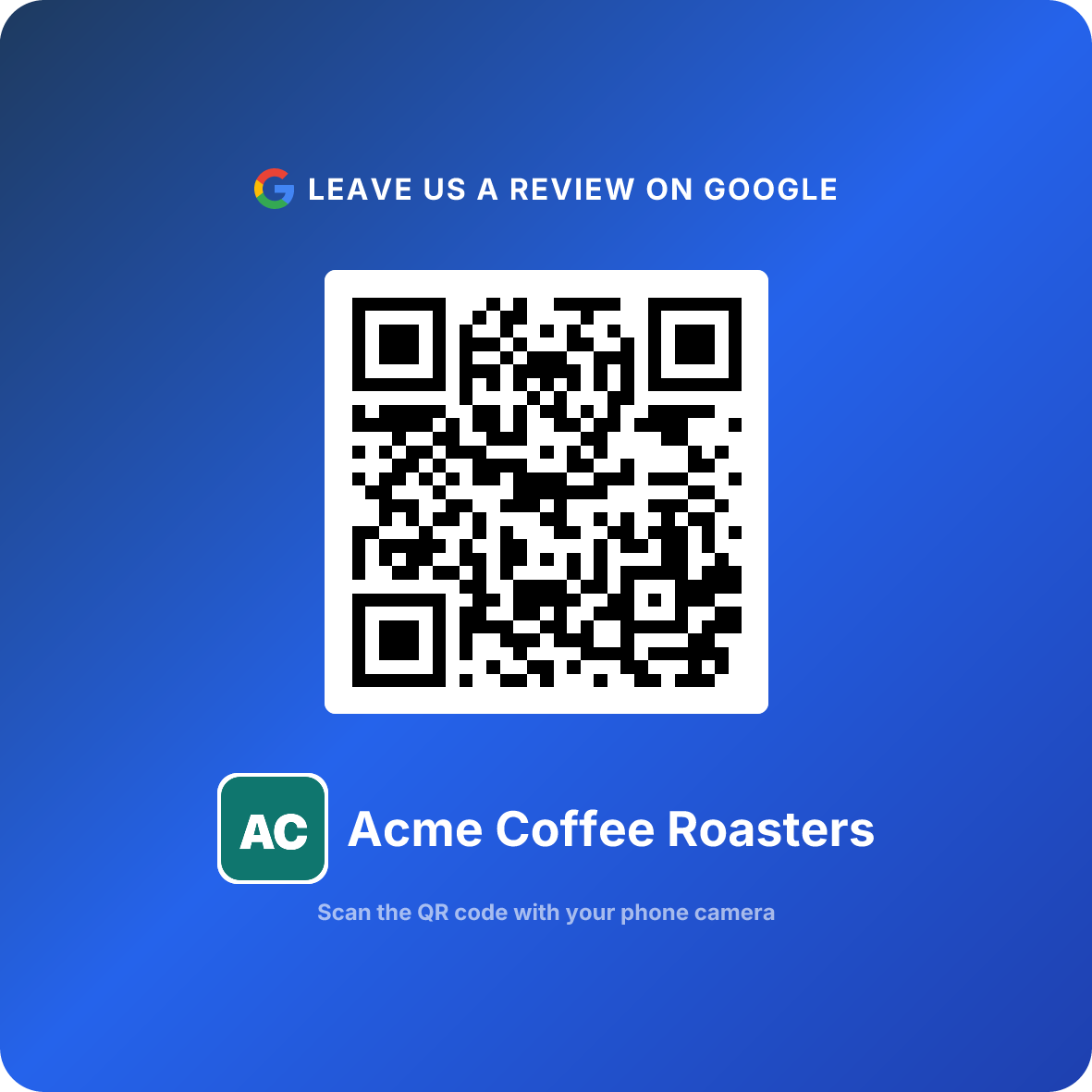
Turn happy customers into reviews
A Google review QR code that gets you more reviews in one scan. Included in every plan.
Get my review QR codeA cafe owner I talked to last spring did everything right. She made a QR code, printed 200 stickers, put one on every takeaway lid for six weeks, and watched her review count go up by four.
The code was not broken. It scanned on the first try, every time, from any angle. The problem was the link inside it. She had copied her business URL out of the Google Maps address bar, which is the obvious thing to do and the wrong thing to do. Every customer who scanned landed on her listing: photos, hours, the phone number, a map. To actually leave a review from there you scroll down, find the reviews section, tap "Write a review", and wait for the box to load. Most people got two taps in and put their phone back in their pocket.
Six weeks, a few hundred scans, four reviews. Nothing in her dashboard would ever have told her why, because from her side the QR code worked perfectly.
This article is about the part of the job that actually decides whether a review QR code produces anything: the link that goes inside the square. Making the code itself takes about thirty seconds. Getting the right link takes four minutes, and it is worth every one of them.
The Link Inside the Square
A QR code is not a thing. It is a picture of a URL. Every question people ask about review QR codes (which generator, what size, static or dynamic, black or branded) is a question about the picture, and the picture is the easy half. The hard half is that Google gives your business at least four different web addresses, they all look official, they all scan fine, and only one of them opens the box a customer types a review into.
That is the Link Inside the Square, and it is the reason review QR programs fail quietly instead of loudly. A broken code fails loudly: nothing happens, somebody tells you, you fix it. A code with the wrong link inside fails silently. It scans. It opens something that is unmistakably your business. The customer sees your photos and your hours and thinks the code worked, because it did. They just never arrive at the thing you wanted them to do, and they have no way to tell you that and no reason to.
Every extra tap between the scan and the text box costs you people. Not a trivial number of people either. The difference between a link that opens the review composer and a link that opens your listing is roughly the difference between half your scanners finishing and a fifth of them finishing.
So the order of operations matters. Get the link. Test the link on somebody else's phone. Then make the code. Doing it the other way round is how you end up with 200 stickers on 200 lids pointing at a map.
What a working scan is actually worth
The arithmetic here is small enough that most owners skip it, which is a shame, because it is the arithmetic that tells you how much care the link deserves.
Take a counter business handing out review cards and running a sign at the till. Call it 400 asks over a quarter, which is about five a day, six days a week. At a 30 percent scan rate that is 120 scans. If the code points at your review composer, completion runs around 40 percent and you finish the quarter with roughly 48 reviews. If it points at your Maps listing, completion drops to somewhere near 18 percent and you finish with 22.
Same stickers. Same staff. Same customers. Twenty-six reviews, gone into the gap between two URLs that differ by about forty characters.
On the cost side: 250 printed cards run $12 to $20, and ReviewQR is free for the first 14 days and then $10 a month on Essentials, so a full quarter of running this properly lands near $45 all in.
The asymmetry that makes the link worth four minutes
A quarter of this program costs roughly $45 and produces about 48 reviews, which is under a dollar a review. A business moving from 20 reviews to 68 reviews does not look like the same business in the map pack, and it does not get read like the same business by the person choosing between you and the shop two streets over. If that visibility brings in even two extra customers over the following year, at a $60 average ticket and two visits each, you are at 5 to 1 on the quarter. Everything past those two customers is free.
Notice which variable actually moved. Not the design, not the printer, not the QR generator. The URL. Four minutes of work at the start is worth more than every other decision in this article combined.
Three ways to get the link, ranked by how often they break
There are exactly three routes to a Google review link that opens the composer. They differ in how long they take and in how likely they are to quietly stop working.
Method 1: The Business Profile short link
Time: about one minute. Breaks: occasionally, and without warning.
Sign in to the Google account that manages the business. Search your own business name on Google, and the business panel appears at the side or top of the results with your management controls in it. Look for "Ask for reviews" or "Get more reviews". Google hands you a short link ending in /review, with a copy button next to it.
This is the fastest route and it is the one Google intends you to use. Two cautions. The option moves around: Google has relocated it between the old dashboard, the search panel, and the Maps business view more than once, so if it is not where a two-year-old tutorial says it is, that is expected. And the short link is issued by Google rather than owned by you, which means if it is ever retired or reissued, everything you printed points at nothing and you find out from a customer.
Best for: getting something live today, testing whether your staff will actually hand cards out before you invest in anything.
Method 2: The Place ID composer URL
Time: about four minutes. Breaks: almost never.
Open Google's Place ID Finder, search your business by name and address, and copy the Place ID it returns. It looks like a long string starting with ChIJ. Then assemble the URL yourself:
https://search.google.com/local/writereview?placeid=YOUR_PLACE_ID
Paste your Place ID in place of YOUR_PLACE_ID and that is your review link. It is ugly, it is long, and it is the most durable option available, because the Place ID is the stable identifier Google uses for your location internally. It does not change when you edit your hours, rename your business, or reshoot your photos.
Best for: anything you are printing in volume, anything going on packaging, anything you do not want to reprint for two years.
Method 3: A tool that resolves the link and tracks the code
Time: about two minutes. Breaks: no, and it tells you when something is off.
The reason to use a dedicated tool is not that it makes a prettier square. Every generator makes the same square. It is that the link is resolved for you (so the Maps-URL mistake is not available to make), the code is dynamic (so the destination can be changed later without reprinting), and every scan is counted (so you can tell whether the till sign, the handed card, or the bag insert is doing the work).
That last one is the part that is genuinely hard to replicate. Without scan data you cannot answer the only question that matters after week two, which is not "does the code work" but "which placement should I print more of."
Whichever method you use, test the finished link on a phone that is not signed in as the business owner. Owner accounts sometimes see a different screen than customers do, and testing on your own phone is the single most common reason a broken link ships. Borrow a phone, scan the code, and confirm the star selector appears without any scrolling or tapping.
Four Google URLs that look interchangeable
Here is the table worth screenshotting. All four of these are real addresses for your business, all four scan perfectly, and three of them will cost you most of your reviews.
| URL shape | What it opens | Use it for a review QR? |
|---|---|---|
google.com/maps/place/Your+Business/... | Your Maps listing, scrolled to top | No |
maps.app.goo.gl/xxxxx (Maps share button) | Your Maps listing, same as above | No |
g.page/r/xxxxx/review (Business Profile) | The review composer, directly | Yes |
search.google.com/local/writereview?placeid= | The review composer, directly | Yes |
The trap is the second row, because the Maps share button feels exactly like the "get my link" feature you are looking for. It is labelled Share, it produces a tidy short link, and it is one tap away. It is also a link to a listing, not to a review, and it is responsible for more dead review QR codes than every other mistake in this article put together.
The test that settles it in three seconds: scan your own code on a borrowed phone. If the first thing you see is a row of empty stars and a text box, the link is right. If the first thing you see is a photo of your shopfront, it is wrong, no matter how well the code scanned.
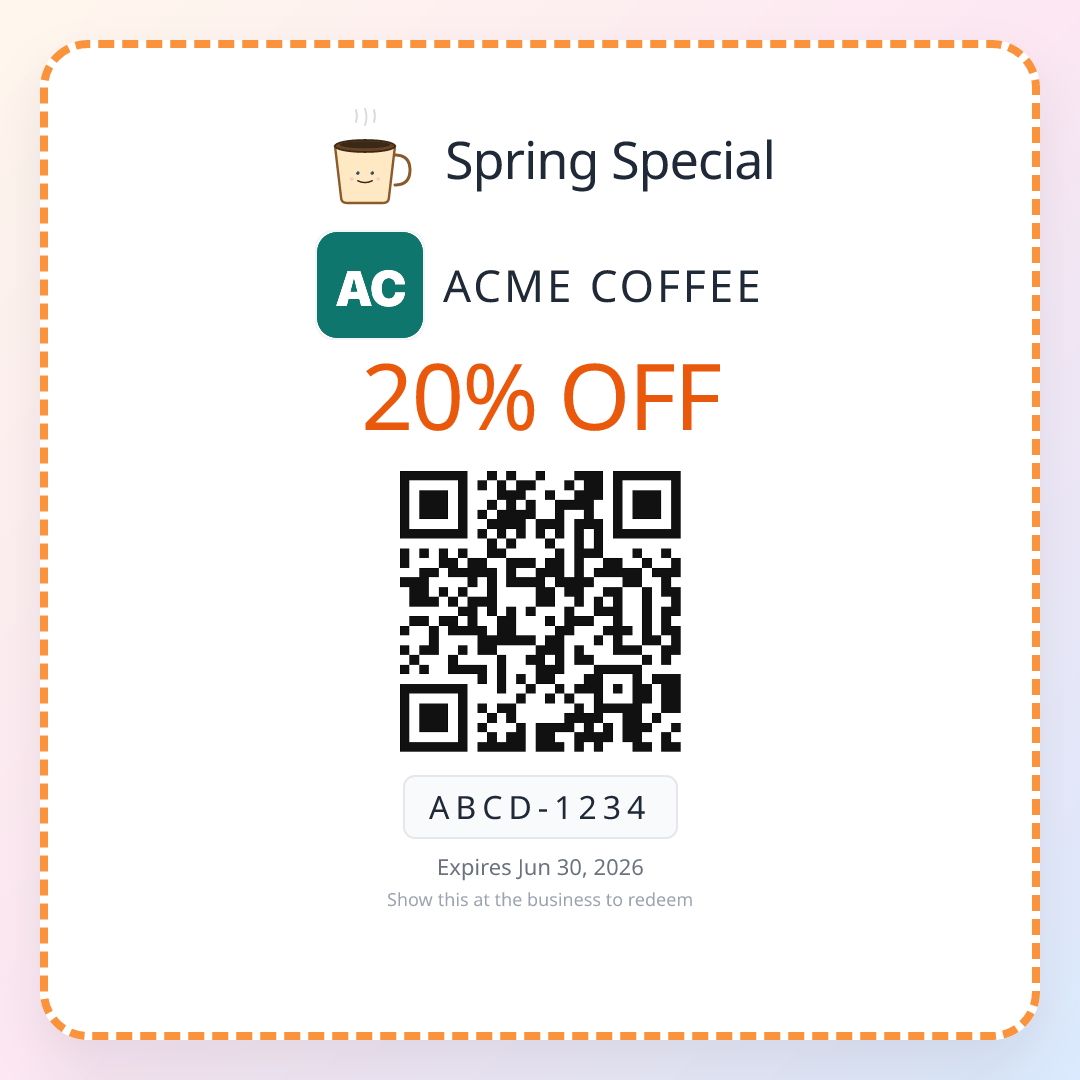
Turn one visit into many
Hand out single-use QR coupons that pull customers back through your door. Part of your Customer Comeback System. 14-day free trial, cancel anytime.
Create a couponWhere the code lives once you have it
A correct link is necessary and not sufficient. The code still has to end up somewhere a customer will look at it while they have a free hand. Five surfaces that consistently earn their printing cost:
At the card terminal, at eye line
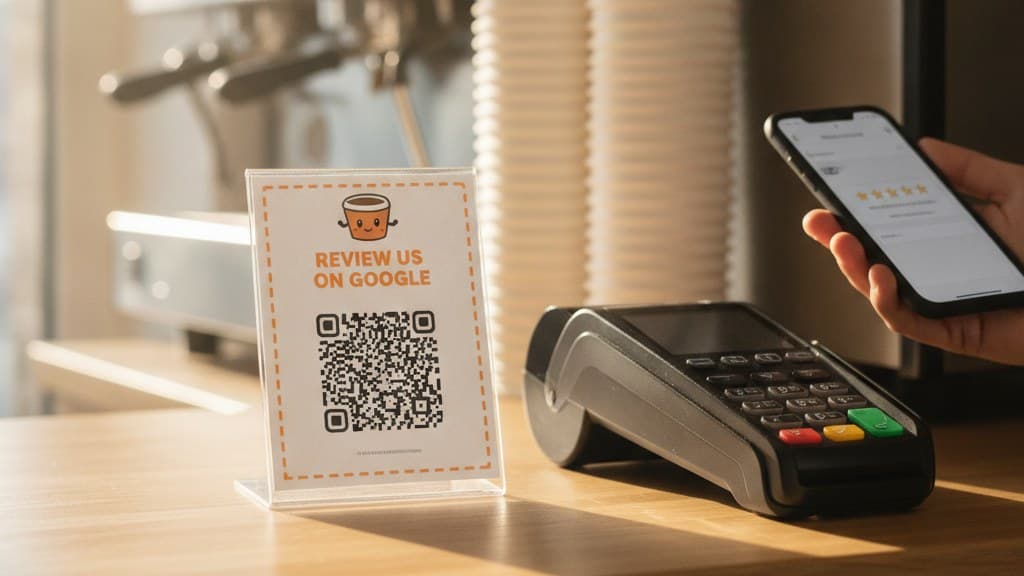
A small stand beside the payment terminal, angled up, not flat on the counter. Flat cards catch overhead light and disappear into the surface. The payment moment is the only point in a visit where the customer is standing still, facing you, with their phone already out. If you print one thing, print this one.
On the receipt or the invoice
Most modern POS systems can print a QR block in the receipt footer, and almost nobody turns it on. The receipt is the one piece of paper the customer is guaranteed to look at, and for any job with an invoice (repairs, grooming, cleaning, trades) the code rides along on a document they have to read anyway.
On a card that gets handed over
A code placed into somebody hand by a person converts several times better than the same code on the same counter as ambient signage, because an object arriving in your hand is addressed to you and a sign is addressed to nobody. This is the highest-return surface on the list and the one most businesses skip.
Inside the packaging, on top of the item
For anything that leaves in a bag or a box: the code goes on top, not at the bottom. Bottom-of-bag cards get found while throwing the bag away. Top-of-bag cards get found while unpacking, when the customer is alone, looking at what they just bought, with a phone in the other hand and nothing competing for attention.
At the waiting surface
The mirror at a barber chair, the wall beside a grooming table, the table tent in a dining room, the frame in a waiting area. These work for a specific reason: the customer is sitting still with unoccupied time and an unoccupied phone. They are lower intent than the payment moment but they cost almost nothing to add.
The pattern is that every one of these puts the code where the customer already has to look, and none of them require the customer to go find it. A code on a wall behind the till is a decoration. A code on the receipt in their hand is an ask.
The math on 400 scans
Run the two versions side by side over one quarter, holding everything constant except the URL inside the code.
Twenty-six reviews is the size of the gap, and it is worth being precise about what created it. Not effort. The staff handed out the same 400 cards in both columns. Not money, since both versions cost the same to print. The entire difference is the number of taps between the scan and the text box, and that number was decided once, at setup, in about four minutes, by whoever copied the link.
These are planning figures, not guarantees. Scan rates move a lot with how the code is presented: cards handed over with a sentence land near 30 percent, while the same code sitting unattended in a stand scans in the low single digits. If you plug 4 percent into the table above you get 5 reviews instead of 48, which is the honest reason the script section below is not optional.
The sentence that turns a printed square into a scan
The link decides what happens after the scan. The sentence decides whether there is a scan at all, and it is eight words long.
Bad version: "We're trying to get more reviews on Google, so if you have a moment we'd really appreciate it if you could scan that code and let us know how we did."
Good version: "If you've got ten seconds, this helps us out."
The good one works because it prices the request honestly and small, it sounds like a person rather than a campaign, and it stops. Stopping is the hard part. The instinct after asking for something is to keep talking, and every extra clause after the ask converts a polite yes into a vague maybe.
Two refinements. If one named person did the work (the stylist, the tech, the barista who remembered the order) they should make the ask themselves, because the review is going to be about them, and "it means a lot to me" outperforms "it helps us out" by a visible margin. And tell staff explicitly that they should skip anybody who had a bad visit. Without that permission, people either ask everyone (which is how you collect the review you did not want) or ask nobody (which is how the program dies in week two).
Never ask for a specific number of stars. "Leave us a 5-star review", a printed row of five filled stars, or offering anything in exchange for a review all violate Google's review policies, and the reviews they produce are the ones most likely to be filtered out. You lose exactly the reviews you worked hardest for. Ask for a review and let the customer choose the rating.
Getting your code in 6 minutes
Confirm your Business Profile is verified
Reviews attach to a verified profile, so if yours is unclaimed there is no review box for a code to point at. Claim it in the Business Profile manager and finish verification before you print anything, because the profile can shift during the process.
Get the review link, not the listing link
Either copy the short /review link from "Ask for reviews" in your business panel, or build search.google.com/local/writereview?placeid=YOUR_PLACE_ID with the Place ID from Google Place ID Finder. If the URL you are holding contains /maps/place/ or goo.gl, it is the wrong one.
Test it on a phone that is not yours
Open the link on a borrowed phone that is not signed in as the business owner. You should land on empty stars and a text box with no scrolling and no extra taps. If you land on your listing, go back to step two. Two minutes here saves a reprint.
Create the QR code (14-day free trial)
Sign in with any email at reviewqr.app. The link is resolved for you, the code is dynamic so the destination can change without a reprint, and every scan is counted. Every plan starts with a 14-day free trial, card on file, cancel anytime.
Print it at 1 inch, matte, dark on light
One inch (25 mm) across, never under 0.8 inches, with a clear margin of blank space around all four sides. Matte finish on the QR side, because gloss reflects overhead counter light straight back into the camera. Dark code on a light background, always, whatever your brand colours are.
Check the scan data after 7 days
Compare scans against asks to get your real scan rate. Under 15 percent means the cards are sitting on the counter instead of being handed over, and the fix is the script, not the code. Over 25 percent means print the next run and add a coupon to the back.
Do This
- ✓Get the review link before you touch a QR generator
- ✓Test the finished link on a phone not signed in as the owner
- ✓Use the Place ID URL for anything printed in volume
- ✓Print dark-on-light, matte, at 1 inch with a clear quiet zone
- ✓Use a trackable code so you can tell which placement works
Avoid This
- ✕Don't encode a google.com/maps/place URL or a Maps share link
- ✕Don't ask for a specific star rating anywhere on the print
- ✕Don't offer a discount in exchange for leaving a review
- ✕Don't print in volume before your profile is verified
- ✕Don't print the review URL as text under the code
The review code gets you found. The other half of the job is getting the customer back through the door, which is what a single-use coupon code does, and the Essentials plan at $10 a month covers 100 of them monthly alongside the review QR.
Six ways a Google review QR code goes wrong
Mistake 1: Encoding the Maps listing URL. The headline mistake, and the invisible one. The code scans, the customer sees your business, and roughly half of the people who would have written a review give up somewhere between the photos and the "Write a review" button. You will never see this in any dashboard. The only way to catch it is to scan your own code on a borrowed phone and look at what actually loads first.
Mistake 2: Using the Maps share button as a shortcut. Share produces a clean short link in one tap, which makes it feel like the right tool. It points at your listing. If your printed code came out of the Share sheet, it is wrong, and it is wrong in the exact way that is hardest to notice.
Mistake 3: Printing before the profile is verified. An unverified profile has nowhere for reviews to land, and the URL can change during verification. Every sticker printed before the verification email arrives is a coin flip.
Mistake 4: Using a static code you cannot track or repoint. A static code bakes the URL into the pattern. It works forever, reports nothing, and becomes waste the day your link changes. The printed square is identical either way, so there is no aesthetic reason to accept a code that cannot answer "which placement is producing my scans."
Mistake 5: Testing only on the owner's phone. Signed-in owner accounts can see different screens than customers. Testing on your own phone is the most common way a broken link survives to the print run. Borrow a phone from somebody who has never managed the profile.
Mistake 6: Shrinking the code to fit the layout. Designers balance the composition by making the QR smaller. Under about 0.8 inches, a phone camera at arm length hunts for focus for a second or two, and those seconds are the entire attention budget you had. Make the code the largest element and let the layout look slightly off.
Related reading
For the full end-to-end setup rather than just the link, the free Google review QR code guide walks the whole build, and the review us QR code guide covers signage design, placement maps, and print specs in detail. If you are printing cards rather than signs, Google review cards with a QR code has the copy templates and sizes. For the ask itself, how to ask customers for Google reviews without being pushy is the script-level companion to this one.
Once the review side is running, the return visit is the other half of the job. The QR coupons for small business overview explains the single-use mechanic, coupon ideas for small business groups 23 plays by goal, and best QR coupon app for small business compares the tools side by side.
Frequently asked questions
How do I get a QR code for Google reviews?
Two steps, and only one of them is about the QR code. First, get your Google review link, which is the short link that opens the review composer directly rather than your Maps listing. You can copy it from the Business Profile manager under "Ask for reviews", or build it yourself as search.google.com/local/writereview?placeid=YOUR_PLACE_ID using the Place ID from Google Place ID Finder. Second, put that link inside a QR code and download it as a print-resolution PNG or PDF. The second step takes about thirty seconds with any generator. The first step is where almost every failed review QR code goes wrong, because a code pointing at your Maps listing still scans fine and still loses roughly half the people before they write anything.
Where do I find my Google review link?
Sign in to the Google account that manages your business, search your business name on Google, and in the business panel that appears look for "Ask for reviews" or "Get more reviews". Google hands you a short link ending in /review that opens the review box directly. If your profile does not show that option, use the Place ID route instead: open Google Place ID Finder, search your business, copy the Place ID, and paste it into search.google.com/local/writereview?placeid=YOUR_PLACE_ID. Test the finished link on a phone you are not signed into as the business owner, because the owner account sometimes sees a different screen than a customer does.
Can I make a Google review QR code for free?
You can encode your review link in a QR code with any free generator, and the black and white square it produces will scan forever. What you do not get for free is knowing anything about it: no scan counts, no times, no way to tell whether the counter sign or the handed card is doing the work, and no way to repoint the code if your link changes without reprinting everything. ReviewQR finds the correct review link for you, wraps it in a trackable code, and starts with a 14-day free trial, card required, cancel anytime. After that Essentials is $10 a month and includes 100 single-use QR coupons, which is the part that brings customers back rather than just measuring them.
Why does my Google review QR code open my listing instead of the review box?
Because the URL inside it is a Maps place link rather than a review link. The two look interchangeable when you copy them out of the address bar, and both scan perfectly, so the failure is completely invisible from your side. The difference shows up on the customer side: a review link opens the star selector and text box immediately, while a Maps link drops them on your listing, where they have to scroll past photos, find the reviews section, and tap "Write a review". Those extra taps are where most of the drop-off lives. Fix it by regenerating the code with a link that ends in /review or one built from search.google.com/local/writereview.
Do I need a Google Business Profile to get a review QR code?
Yes, and it needs to be verified. Reviews attach to a verified Business Profile, so without one there is no review box for a code to point at. If your business appears on Maps but you have never claimed it, claim it first through the Business Profile manager and finish verification, which usually takes a few days by postcard, phone, or video depending on the category. Do not print anything until verification is complete, because the profile URL can change during the process and you will end up with a stack of stickers pointing at a listing you no longer control.
Should the QR code be static or dynamic?
Dynamic, for two reasons that have nothing to do with scanning quality. A static code has your review URL baked into the pattern itself, which means it works forever and reports nothing, and if the URL ever changes every printed copy becomes garbage. A dynamic code points at a short link you control, so you can see how many scans you got, when they happened, and which placement produced them, and you can repoint the destination later without reprinting a single sticker. The printed square looks the same either way. The difference is whether you are running a program or guessing about one.
Ready to Implement This Strategy?
Create your custom QR code in 2 minutes and start collecting Google reviews today.
Create Your QR Code NowMore Google Review Guides
Review Us QR Code: Create, Display, and Track
Create a 'Review Us' QR code, design professional signage, choose high-converting placements, and track results with scan analytics. Free guide with real data.
guidesQR Code for Reviews: 2-Minute Setup + 3-5x More in 90 Days
How local businesses use QR codes to collect 3-5x more Google reviews in 90 days. Simple generator, real placement tactics, scan-rate data, and what to put on the card.
guidesHow to Create a QR Code for Google Reviews (Free, No Expiry)
Step-by-step guide to creating a free QR code for Google reviews. Learn why QR codes outperform traditional methods and how to track results with analytics.