How to Leave a Google Review (Phone, Computer, and No Google Account)
Step-by-step instructions for leaving a Google review on an iPhone, an Android phone, or a computer, plus what to do without a Google account, how to edit or delete a review, and why a review sometimes does not show up. Written so a business can send this page to its customers.
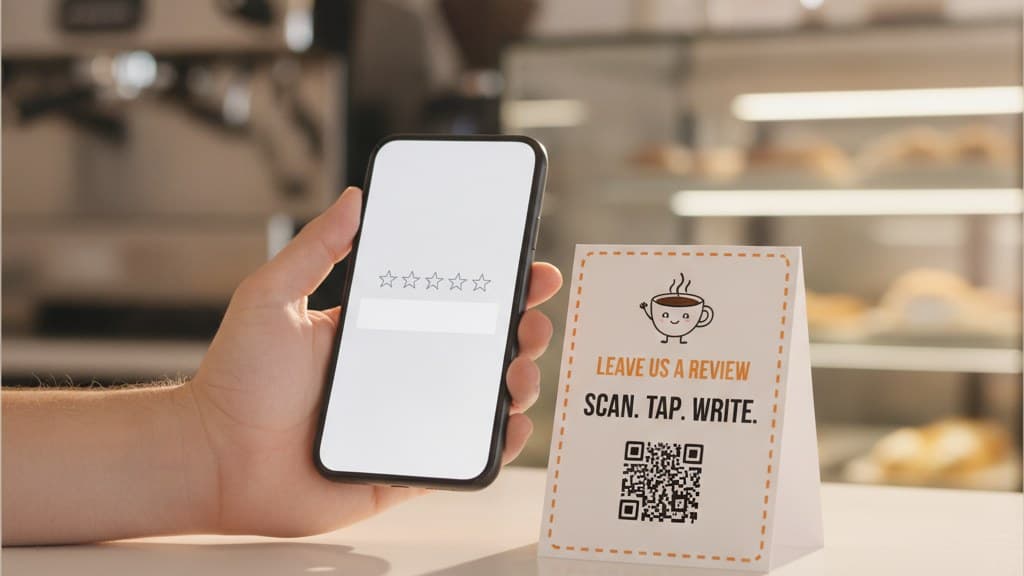
How to Leave a Google Review (Phone, Computer, and No Google Account)
Turn happy customers into reviews
A Google review QR code that gets you more reviews in one scan. Included in every plan.
Get my review QR codeA florist told me about a customer who came back the week after a wedding order, beaming, and said: "I wanted to leave you a review, I really did. I opened Google, I found your shop, and then I could not find where you actually write the thing."
She had tried. She had searched the right name, landed on the right business, looked at the photos, checked the opening hours, and quit. Not because she changed her mind. Because the button she needed was two screens down, under a tab she did not think to open, and her lunch break was over.
Most people who never leave a review are not unwilling. They are lost for about fifteen seconds, and fifteen seconds is the whole budget. This page is the fix. The first half is written for the customer, step by step, for every device. The second half is for the business that wants to send it.
The 30-second answer
If you just want the steps:
- Find the business. Search its name on Google, or open it in the Google Maps app.
- Open the reviews. Tap the Reviews tab or section on the business profile.
- Tap "Write a review". In Maps you can also tap the row of empty stars.
- Pick your stars and write a few lines. One to five stars, text and photos are optional.
- Tap Post. You need to be signed in to a Google account.
If the business gave you a QR code or a link, use that instead. It opens step 4 directly and skips the rest.
The Send-This-Page Moment
Every business that asks for reviews eventually hits the same moment. A customer says yes, sincerely, and then asks "how do I do that?", or worse, does not ask and quietly gets stuck. The owner then does one of two things: explains it out loud, which nobody remembers past the door, or searches "how to leave a Google review" to find something to forward.
That search runs about 18,100 times a month in the US alone, and a surprising share of it is business owners, not customers. That is the Send-This-Page Moment: the point where a willing customer and a finished review are separated by nothing except instructions.
So this page is built to be forwarded. Every section below stands on its own, so you can link a customer straight to the part that matches their device. And if you are the owner, read the second half before you send anything, because there is a way to make the instructions unnecessary.
On a phone with the Google Maps app
This is the most common route on both iPhone and Android, and the Maps app is already installed on most Android phones.
Open Google Maps and search the business
Type the business name, plus the town if it is a common name. Tap the right result so its profile card slides up from the bottom of the screen.
Open the full profile
Swipe the card up (or tap the name) so the full profile fills the screen. You should see tabs such as Overview, Menu or Services, Reviews, and Photos.
Go to Reviews
Tap the Reviews tab. Near the top there is a row of five empty stars and a "Write a review" button. Tapping either one opens the review box.
Choose your stars and write
Tap a star from one (poor) to five (great). A text box opens underneath. Writing is optional, but a few specific sentences help the next customer far more than stars alone. Tap the camera icon to add photos.
Post it
Tap Post. If you are not signed in, Maps asks you to sign in first. The review is public under your Google account name and usually shows up within minutes.
Menus in the Maps app move around between versions. If you cannot find the Reviews tab, scroll down the Overview tab instead: there is almost always a "Rate and review" row with the same five empty stars.
On a phone without the Maps app
On an iPhone without Google Maps, or on any phone where you would rather use the browser, the Google search page works just as well.
- Open Google in Safari, Chrome, or the Google app, and search the business name and town.
- Find the business profile at the top of the results: the block with the name, star rating, photos, and a map.
- Tap "Reviews" in the row of tabs on that profile. Some layouts show the star rating itself as a link; tapping it goes to the same place.
- Tap "Write a review". Sign in if you are asked to.
- Pick your stars, write, and tap Post.
If the search shows a list of several businesses rather than one profile, tap the right one first. Apple Maps is a different service: ratings left there do not become Google reviews.
On a laptop or desktop
- Go to google.com and search the business name and town.
- Look at the right-hand side of the results page. The business profile sits there with photos, hours, and the star rating.
- Click "Write a review", which sits in or just below the reviews summary. If you do not see it, click the number of reviews (for example "214 Google reviews") and look for the button at the top of the window that opens.
- Choose your stars, type your review, add photos if you have them, and click Post.
The same thing works on google.com/maps: click the business, open the Reviews tab, click Write a review. A desktop is the easiest place to write something longer, and you can drag photos straight in from your computer.
No Google account, or you want to stay private
You do need a Google account. Google does not accept guest reviews, so there is no way around signing in. What most people do not know is that a Google account does not mean a Gmail address.
On Google's account sign-up page, when it offers to create a new Gmail address, choose the option to use your existing email address instead. Enter the email you already use, confirm it with the code Google sends, set a password, and you are done in about two minutes. You can use that account for reviews and nothing else.
You cannot post fully anonymously. Every review shows the posting account's name and profile photo. If you would rather not use your full name, change the display name on your Google account (a first name and last initial is common) before you post. That change applies across Google services, not just to reviews, so it is worth deciding once. The business sees the same public name as everyone else, not your email address.
Reviewing a place you work at, own, or were paid or rewarded to review is against Google's policies, even from a personal account. Reviews like that tend to get filtered, and they can put the business profile at risk.
What to actually write
The review people find useful is short and specific. A simple shape that works for almost any business:
- What you came in for. "Needed a same-day bouquet for my mum's birthday."
- What happened. "They built something better than the photo I showed them, in 20 minutes."
- Who helped, if you know. "Ask for Ana."
- Who you would recommend it to. "Great for last-minute gifts."
That is four sentences and it beats a paragraph of "amazing, amazing, highly recommend". Future customers are scanning for their own situation, so the detail that matches theirs is the one that sells. Photos help too, especially of the thing you bought.
A few things get reviews held back: links, phone numbers, email addresses, and personal details about staff. Keep it to your own experience and it will post cleanly.
Editing, deleting, and the review that never appeared
To edit or delete: in the Google Maps app, tap your profile picture or the Contributions section, open Reviews, find the one you want, and tap the three-dot menu for Edit or Delete. On a computer, search the business on Google, find your review in its reviews list, and use the same menu. Edits show the new text; deleting is permanent.
If your review is not showing, check these in order:
- Look while signed out. Open a private browser window, search the business, and sort reviews by newest. Your own view can differ from the public one.
- Give it a few days. Some reviews are held for checking and appear later.
- Check what you wrote. Links, phone numbers, or copied text trip the spam filter.
- Consider where you posted from. A brand-new account posting from inside the business, or several reviews for one place arriving at once, looks like a campaign to Google's filters, even when it is not.
If it has been filtered, Google rarely says why, and posting the same text again usually gets the same result.
Skip the instructions entirely
Find your business's direct Google review link in seconds. It opens straight to the stars, no searching, no tabs. Free, no sign-up.
Get my review linkFor business owners: what the instructions cost you
Everything above is five steps. Every one of those steps is a place where a customer who already said yes can drift off. Instructions are better than nothing, but the better move is to remove the steps, not explain them.
Google gives every business a direct review link that opens the star selector and text box immediately. Put that link in a text message, an email, or a QR code, and "how to leave a Google review" collapses into one tap. You can find yours in your Business Profile under "Ask for reviews", or type your business name into the free Google review link generator and copy it.
Here is what the difference looks like over one month, holding everything constant except the path. Call it 200 customers who agreed to leave a review.
The reasoning behind those numbers: when the path is "search for us", maybe one customer in ten ever does the search later, and about half of those make it through the tabs, so around 10. A texted link gets opened by roughly a quarter of people and about 40 percent of those finish, so around 20. A QR code handed over in the moment gets scanned by around 30 percent, and with a direct link inside it the same 40 percent finish, so about 24.
These are planning figures, not guarantees. The ratios are what matter: every step you remove keeps customers you already won. The same QR code left unattended on a wall scans in the low single digits, so how you hand it over counts as much as what is inside it.
If you want the QR route, ReviewQR finds your direct review link, turns it into a print-ready, trackable code, and counts every scan so you know which placement works. Every plan includes the Google review QR code and starts with a 14-day free trial (card required, cancel anytime). Essentials is $10 a month and Growth is $25 a month, and both also include single-use QR coupons for getting that same customer back through the door.
The message that goes with the link
Whether it is a text, an email, or a sentence at the counter, the words around the link decide whether it gets tapped.
Bad version: "Hi! We are a small family business and reviews really help us grow, so if you have a moment we would be so grateful if you could go to Google, search for us, and leave us a 5-star review!"
Good version: "Here's our direct review link. Thirty seconds, tops."
Eight words. It removes the search, prices the favour honestly, and stops talking. The bad version adds work (go to Google, search), adds guilt (so grateful), and asks for a specific rating, which is against Google's review policies and is exactly the kind of wording that gets reviews filtered.
If a customer does still ask "how do I do it?", that is the moment to send this page. Link them to the section for their device (Maps app, phone browser, or computer) rather than the whole article.
Six ways businesses lose the review after the yes
1. Saying "just search for us". The customer agrees, walks out, and never searches. Of all the leaks this is the biggest, and it is invisible, because nobody tells you they forgot.
2. Sending the Maps listing instead of the review link. The link copied from the Maps address bar or the Share button opens your profile, not the review box. It looks right, and it quietly puts the tabs back in the customer's way. The QR code link guide covers how to tell the two apart.
3. Asking for five stars. "Leave us a 5-star review" on a sign, a card, or a text breaks Google's policies and puts the reviews it produces at risk of removal. Ask for a review and let the customer pick.
4. Offering something in exchange for the review. A discount, a free drink, an entry into a draw: all of them count as incentives under Google's rules. Rewarding the return visit is fine. Rewarding the review is not.
5. Asking everyone on the same day from the shop Wi-Fi. A burst of new accounts posting from your premises in one afternoon is the pattern the spam filter is built to catch. A steady trickle over weeks survives. A launch-day blitz often does not.
6. Never testing the link yourself. Open your review link on a phone that is not signed in as the business owner. If you land anywhere other than the empty stars, fix it before you print or send anything.
Related reading
If you are setting up the direct link for the first time, how to get a QR code for Google reviews explains the four Google URLs that look alike and which one belongs in the code, and the free Google review QR code guide walks the full build. For the ask itself, how to ask customers for Google reviews without being pushy has the scripts, and Google review cards with a QR code covers the card you hand over at the counter. Deciding between a tap card and a printed code? Google review tap card vs QR code compares them honestly.
Once reviews are coming in, the next job is bringing those customers back, which is what the QR coupons for small business overview is about.
Frequently asked questions
How do I leave a Google review?
Search the business name on Google or open it in the Google Maps app. On the business profile, open the Reviews section and tap "Write a review" (in Maps you can also tap the empty stars directly). Choose a star rating from one to five, write a few sentences about your visit if you want to, add photos if you have them, and tap Post. You need to be signed in to a Google account. The whole thing takes under a minute once you are on the right screen, and if the business gave you a direct review link or a QR code, scanning it skips straight to the stars.
Can I leave a Google review without a Google account?
No. Google only accepts reviews from signed-in Google accounts, so there is no guest option. The good news is that a Google account does not require Gmail. On the account creation page you can choose to use your existing email address instead of creating a new Gmail inbox, confirm it with a code, and you are ready to review in about two minutes. That account can stay dormant for everything else.
Can I leave a Google review anonymously?
Not fully. Every Google review shows the name and profile picture of the account that posted it. What you can do is change how your name appears: edit the name on your Google account (for example to a first name and an initial) before posting. Keep in mind that the change applies across Google services, not just to reviews. The business owner sees the same public name everyone else sees, not your email address.
How do I write a good Google review?
Say what you came in for, what happened, and who helped. One specific detail (the dish you ordered, the stylist who fixed a bad cut, the mechanic who explained the repair) is worth more to future customers than a paragraph of adjectives. Three to five sentences is plenty. Add a photo if you have one, keep it about your own visit, and leave out phone numbers, links, and personal details about staff, since those can get a review filtered.
Why is my Google review not showing?
Usually one of three reasons. Google holds or filters reviews its systems think might be spam, which catches reviews with links or phone numbers, reviews posted from the business premises on a brand-new account, and bursts of reviews for the same place. Sometimes a review is simply delayed and appears a few days later. And sometimes it is visible to you but not to others, which you can check by searching the business in a private browser window while signed out. If it is gone for good, Google usually does not say why, and reposting identical text rarely helps.
Can I edit or delete a Google review after posting it?
Yes, anytime. In Google Maps, open your profile or the Contributions section, find the review, tap the three-dot menu, and choose Edit or Delete. On a computer, search the business on Google, find your review in the reviews list, and use the same menu. Editing replaces the old text with the new one. Deleting removes it for good, and the business cannot restore it.
Ready to Implement This Strategy?
Create your custom QR code in 2 minutes and start collecting Google reviews today.
Create Your QR Code NowMore Google Review Guides
23 Coupon Ideas for Small Business: Win Customers, Boost Sales, Build Loyalty
23 proven coupon ideas for small business — grouped by goal: attract new customers, raise the average sale, and turn first-timers into regulars. Plus how to keep them margin-safe.
guidesQR Code for Business Reviews: The Complete Playbook for 2026
A QR code for business reviews turns happy customers into reviews without friction. Here is how it works, where to place it, and what to expect in 30 days.
guidesHow to Ask for Google Reviews Without Being Pushy
7 proven ways to ask customers for Google reviews naturally. Scripts, timing tips, and the QR code method that removes the awkwardness completely.